
What You’ll Learn
- Creating keys with the MainWP Key Maker plugin
- Importing and managing keys in Bulk Settings Manager
- Applying settings to multiple child sites
- Using Key Rings to group related keys
- Troubleshooting common issues like nonce errors
How it Works
MainWP Bulk Settings Manager Extension works together with the MainWP Key Maker plugin. The Key Maker plugin grabs necessary data from your WordPress site (where you have set your preferences); next, the Extension converts the data to a key that you can submit to the rest of your child sites and apply your preferences. Quick and easy, with just a few clicks, you can update settings on all your child sites!Does Bulk Settings Manager work with the XYZ plugin or theme?
While we have not tested every plugin or theme, Bulk Settings Manager should technically work with any plugin or theme that uses standard forms. If you want to check if the information you want to work with will be recorded:Install the free MainWP Key Maker Plugin (link to WordPress.org)
Submit the form you want to be able to use in Bulk Settings Manager.
Once you have submitted the form, press the MainWP Key Maker button in your WP Admin Top Menu.
Select the Post-submission Request key
Now click on “Verify Form Fields and Values” this will show you in a human-readable way what information was gathered.
Bulk Settings Manager Workflow
Install the Key Maker plugin on a site that has a Theme or Plugin with settings that you want to share across your Child Sites
Install the Bulk Settings Manager Extension in your MainWP Dashboard
Go to a settings page of plugin or theme that you want to copy to all your Child sites and Submit that page, so the form is passed
Press the MainWP Key Maker button listed at the top of your screen

Select the post-submission Request field and copy the generated code by clicking the Copy to Clipboard button
Log in to your MainWP Dashboard
Go to MainWP Dashboard > Add-ons > Administrative > Bulk Settings Manager
Open the Import Keys tab
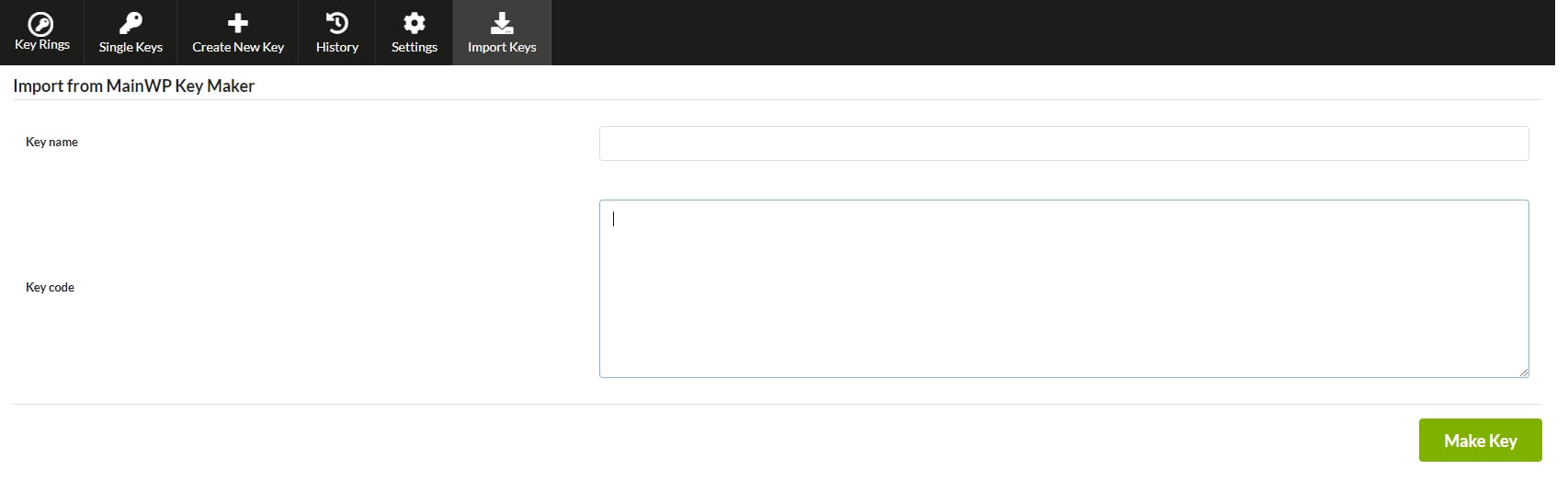
- In the Import from MainWP Key Maker section, give your key a name
- Paste the copied code in the Key code field
- Click the Import Key button
After the Key has been created, you will be redirected to the Key Edit screen.
Verify the form fields look correct for you and, if needed, update field values
Click the Save Key button
Go to the Single Keys tab
- Select the Key
- Select your Child Sites
- Click the Save Key button
Add a Key to a Key Ring
Key Ring feature allows you to group your Keys and submit them all at once. It comes pretty handy in case one Plugin or Theme has multiple settings forms. After you create all Keys for a plugin or theme, you can group them in a single Key Rings that allow you to manage them more efficiently.Login to your MainWP Dashboard
Go to MainWP Dashboard > Add-ons > Administrative > Bulk Settings Manager
Go to the Single Keys tab
Locate the Key that you want to add to a Key Ring
Click the Edit action
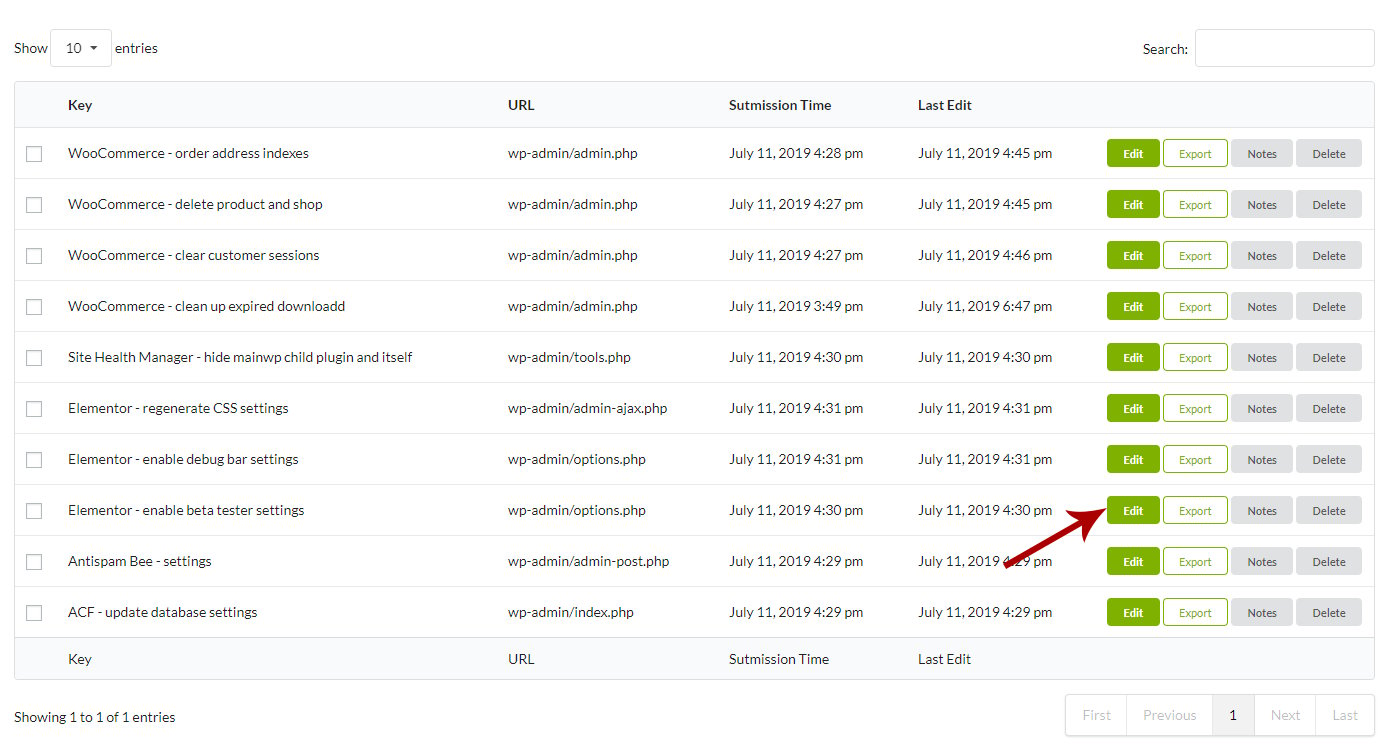
In the Key Settings box, locate the Key Ring options
Create a new Key Ring for your Key or assign the Key to an existing one
Click the Save Key button
Save Keys to Child Sites
Submit a Single Key
Login to your MainWP Dashboard
Go to MainWP Dashboard > Add-ons > Administrative > Bulk Settings Manager
Go to the Single Keys tab
Locate the Key that you want to submit
Select it
Select your Child Sites
Click the Save Key button
Submit a Key Ring
Login to your MainWP Dashboard
Go to MainWP Dashboard > Add-ons > Administrative > Bulk Settings Manager
Go to the Key Rings tab
Locate the Key Ring that you want to submit
Select it
Select your Child Sites
Click the Save Key Ring button
Create a Single Key
MainWP Bulk Settings Manager extension allows you to create Keys manually or import them from the MainWP Key Maker plugin or a file. Please note that we highly recommend making your keys by importing them from the Key Maker plugin. This method is much easier, quicker, and minimizes potential issues. However, if you decide to make keys manually, note that it is a harder process and recommended only to advanced users.Make a Single Key with the Key Maker plugin.
The Bulk Settings Manager Extension works with the MainWP Key Maker plugin to record your form settings and make a “key.” Once you have the “key,” you save it into your Bulk Settings Manager Extension. From this point, you can submit your settings to child sites, or if needed, you can update your settings and submit them to child sites after that.Login into your website where you have the plugin set as you want it
Install the MainWP Key Maker plugin and activate it
Go to a settings page of a plugin, theme, or one of the WordPress settings pages that you want to copy to all your Child sites
Submit the settings form, so the form is passed
Press the MainWP Key Maker button listed at the top of your screen
Select the post-submission Request field and copy it to clipboard
Login to your MainWP Dashboard
Go to MainWP Dashboard > Add-ons > Administrative > Bulk Settings Manager
Go to the Import Keys tab
- Paste the copied code in the Key code field
- Give your key a name
- Click the Import Key button
After the Key has been created, you will be redirected to the Key Edit screen.
Verify the form fields look correct for you and, if needed, update field values
Click the Save Key button.
Bulk Settings Manager Settings
- Delay – allows you to set a time delay between two submissions. For example, if you set a delay to 5 seconds and submit a key to 3 child sites after the Key has been submitted to the first site, the extension will wait for 5 seconds before it proceeds to the next child site. This option helps you to reduce server load.
- Clear History – by clicking the button, you will delete all historical data from the Bulk Settings Manager extension.
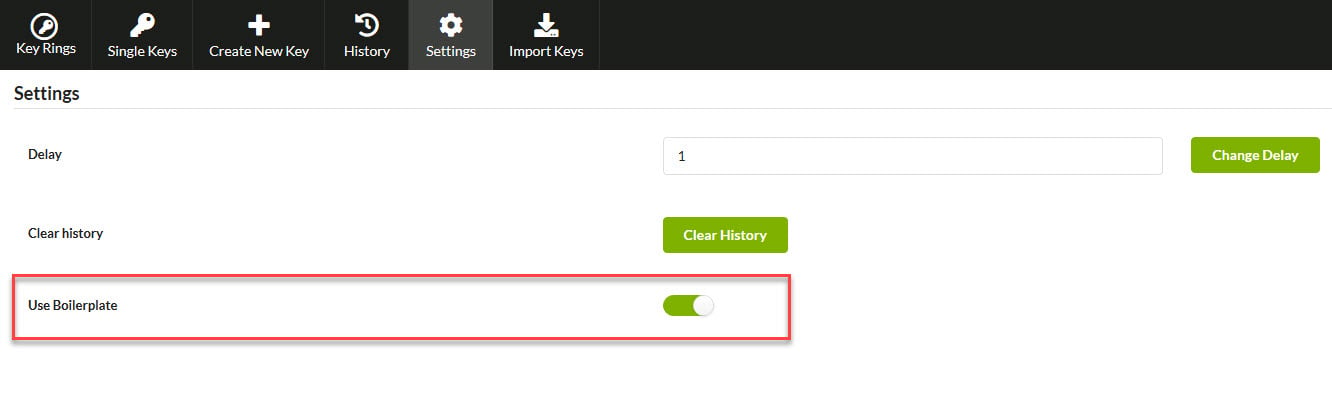
- Use Boilerplate – if enabled, you will be able to use Boilerplate tokens as key field values. Note that this option works only if the MainWP Boilerplate Extension has been installed and activated on your MainWP Dashboard.
Import a Bulk Settings Manager Key
There are two ways to import Bulk Settings Manager Extension keys: by pasting a key code or by importing a key file.Paste Key Code
Login to your MainWP Dashboard
Go to MainWP Dashboard > Add-ons > Administrative > Bulk Settings Manager
Locate the Import from MainWP Key Maker section
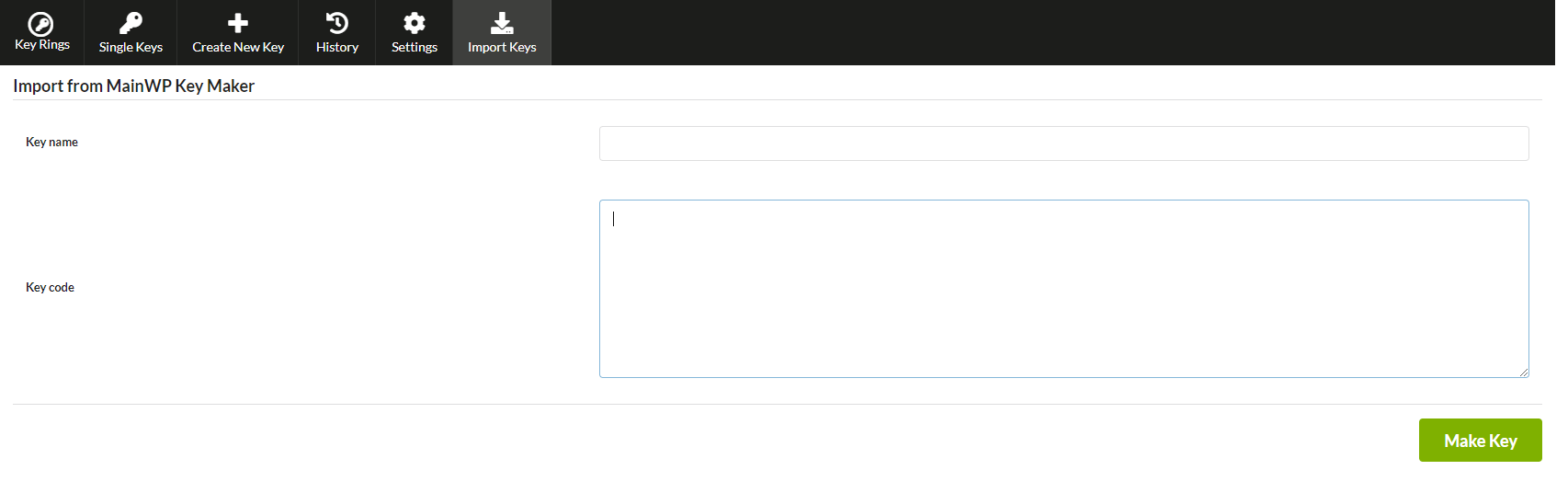
- Enter the key name in the Key name field
- Paste the previously copied code in the Key code field
- Click the Import Key button
Import Key File
Login to your MainWP Dashboard
Go to MainWP Dashboard > Add-ons > Administrative > Bulk Settings Manager
Locate the Upload Key File section

- Click the Choose File button
- Browse and select the previously downloaded key file
- Click the Upload Key button
Edit Key Values
To edit Key values,Go to MainWP Dashboard > Add-ons > Administrative > Bulk Settings Manager > Single Keys
Locate the Key that you need to edit
Open the action menu and click Edit
Once prompted to the Key Edit page, locate the fields that you need to update
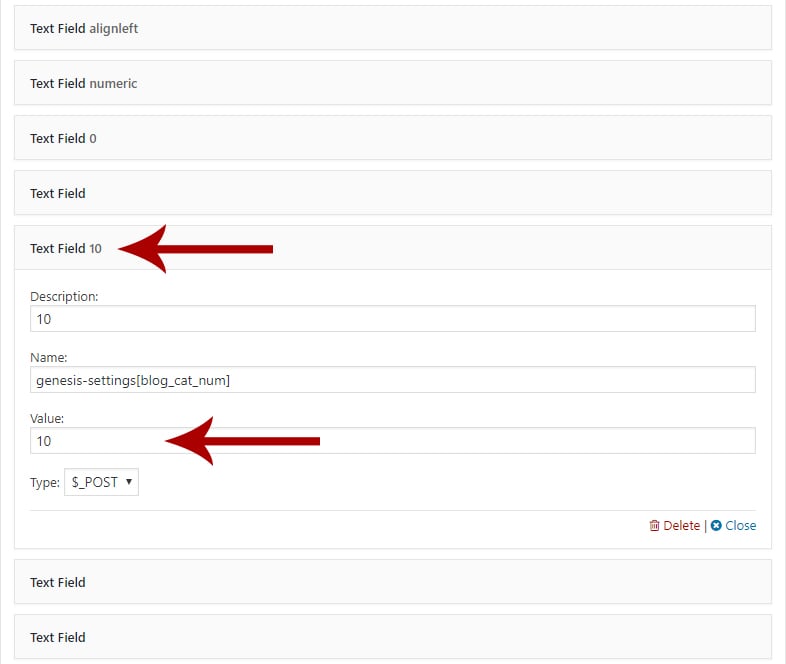
- Click the Field title to expand it
- Update the Value
- Update these two steps for all fields that you want to edit
Once ready, click the Save Key button at the bottom of the page
How to Use Boilerplate Tokens in Keys
MainWP Bulk Settings Manager Extension supports Boilerplate tokens. By using tokens, it is possible to set per-site unique values in forms. Changing the WordPress Settings > General form is a common example. In that form, thesiteurl and home fields must remain unique for each child site. To handle that kind of form correctly:
Make sure that the Use Boilerplate option is enabled
Next, after creating the Key, please find it in the list and Edit it
Locate the key fields you want to replace with Boilerplate tokens
Replace the relevant field values with the Boilerplate tokens you want to use
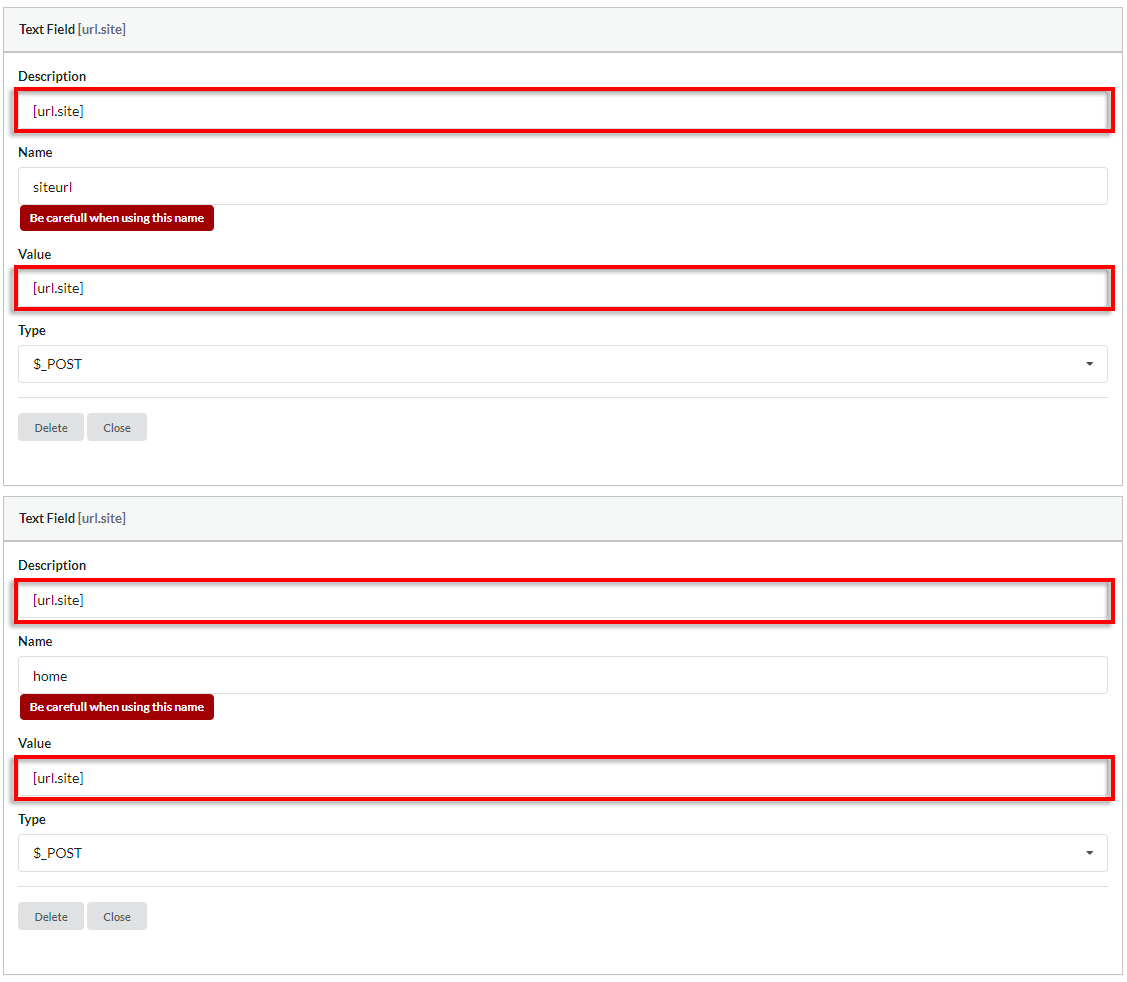
Save the key
Change WordPress Administration Email Address on Multiple Child Sites at Once
Install Bulk Settings Manager and Boilerplate extension on your MainWP Dashboard
Install MainWP Key Maker on any of the Child Sites to create a template to replicate on other Child sites
On MainWP Dashboard > Add-ons > Administrative > Bulk Settings Manager > Settings, enable Use Boilerplate
Navigate to WordPress Dashboard > Settings > General Settings on a Child Site with the Key Maker plugin installed in step 2, and create a Key
Go to MainWP Dashboard > Add-ons > Administrative > Bulk Settings Manager > Import Keys and import the key
Next, after creating the Key, please find it in the list and Edit it
Locate the URL-related key fields
Replace those values with the Boilerplate tokens you want to apply
Locate the new_admin_email key field
Replace the Value of the field with the new address you want to apply to Child sites
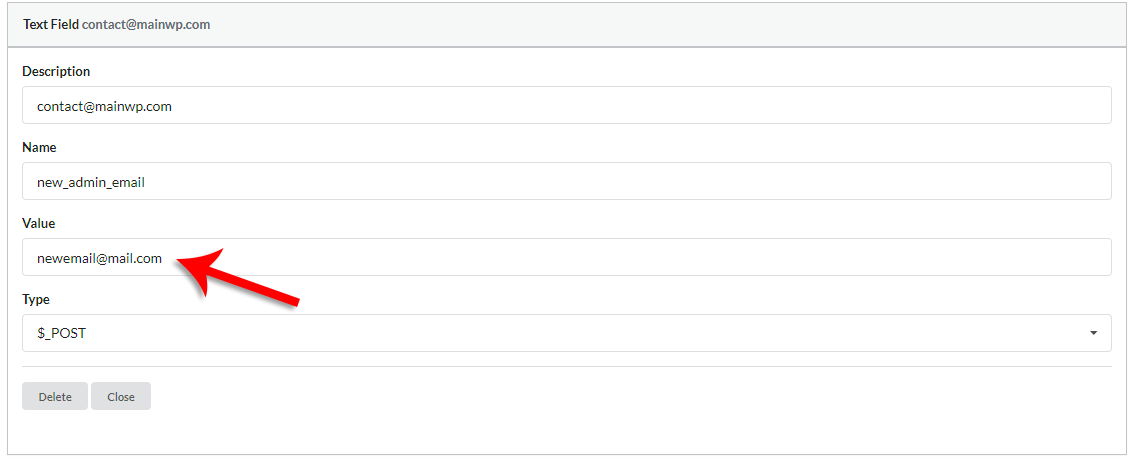
Save changes to the Key
Select Sites from the right and click Save Key
How to fix Invalid nonce error in Bulk Settings Manager
When saving a key to child sites, Bulk Settings Manager can, under some circumstances, report an “Invalid nonce” error message. The current interface includes a built-in Skip Invalid nonce option in the Save Key Options panel. To use it:
Open the Single Keys or Key Rings tab
Select the key or key ring and choose the child sites you want to target
Enable Skip Invalid nonce in Save Key Options
Click Save Key or Save Key Ring
mainwp-bsm-unverify-nonce.
How to change Rank Math settings on your child sites using Bulk Settings Manager
In this help document, we will cover how to change the settings of the Rank Math plugin on your Child Sites using Bulk Settings Manager. Even though most settings pages can be changed, a notable exception is toggling Modules On/Off on the Rank Math > Dashboard page because that page doesn’t use submission requests to save changes. Note: Considering that the Bulk Settings Manager will overwrite all options on a given settings page, please ensure that it is acceptable that all Child sites have the same options on that page. This help document will cover how to change the options on the Rank Math > General Settings page. However, the same logic applies to other settings pages. To change Rank Math settings, please follow the following steps, and visit linked articles for detailed instructions for individual steps.
Install Bulk Settings Manager extension on your MainWP Dashboard
Install MainWP Key Maker on any of the Child Sites to create a template to replicate on other Child sites
Navigate to WordPress Dashboard > Rank Math > General Settings on a Child Site with the Key Maker plugin installed, and create a Key
Go to MainWP Dashboard > Add-ons > Administrative > Bulk Settings Manager > Import Keys and import the key
Next, after creating the Key, please find it in the list and Edit it
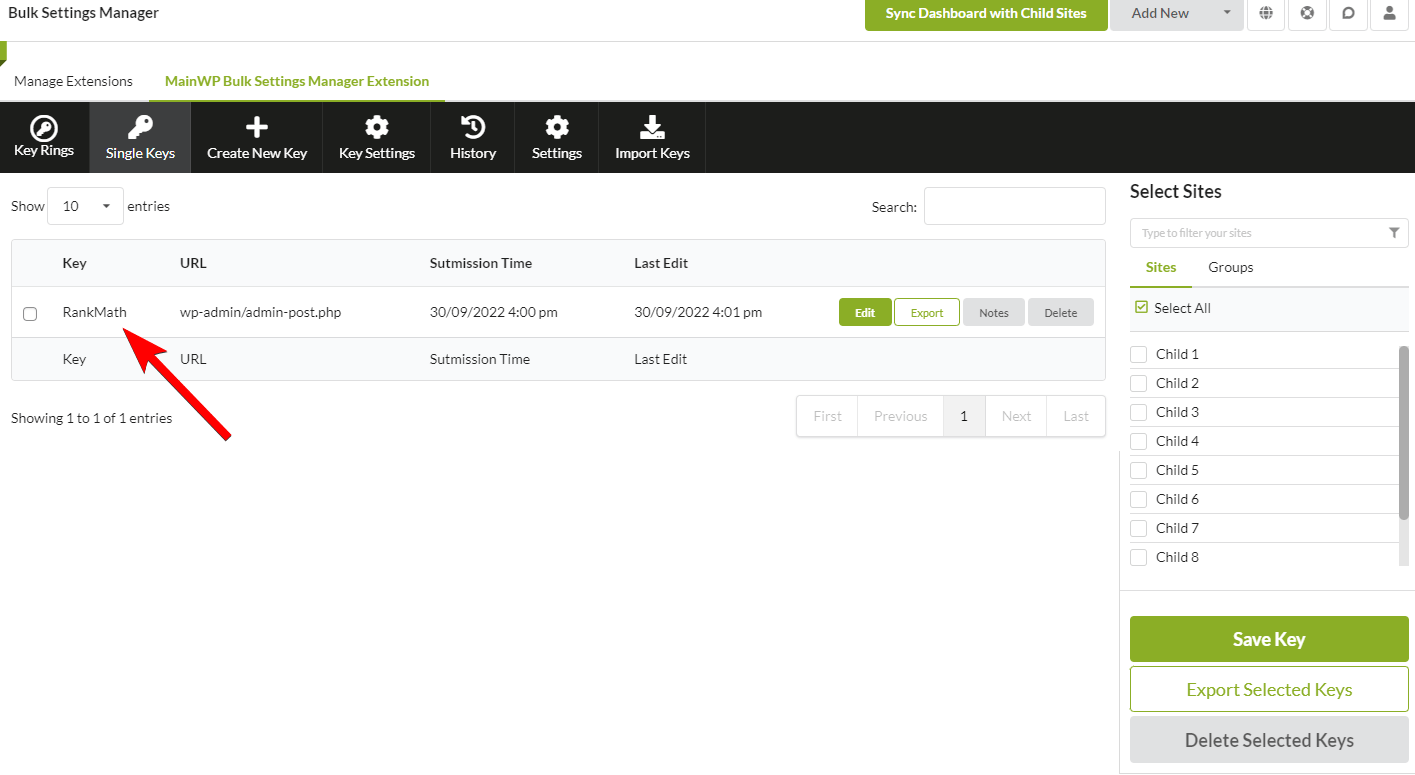
Select Sites from the right and click Save Key
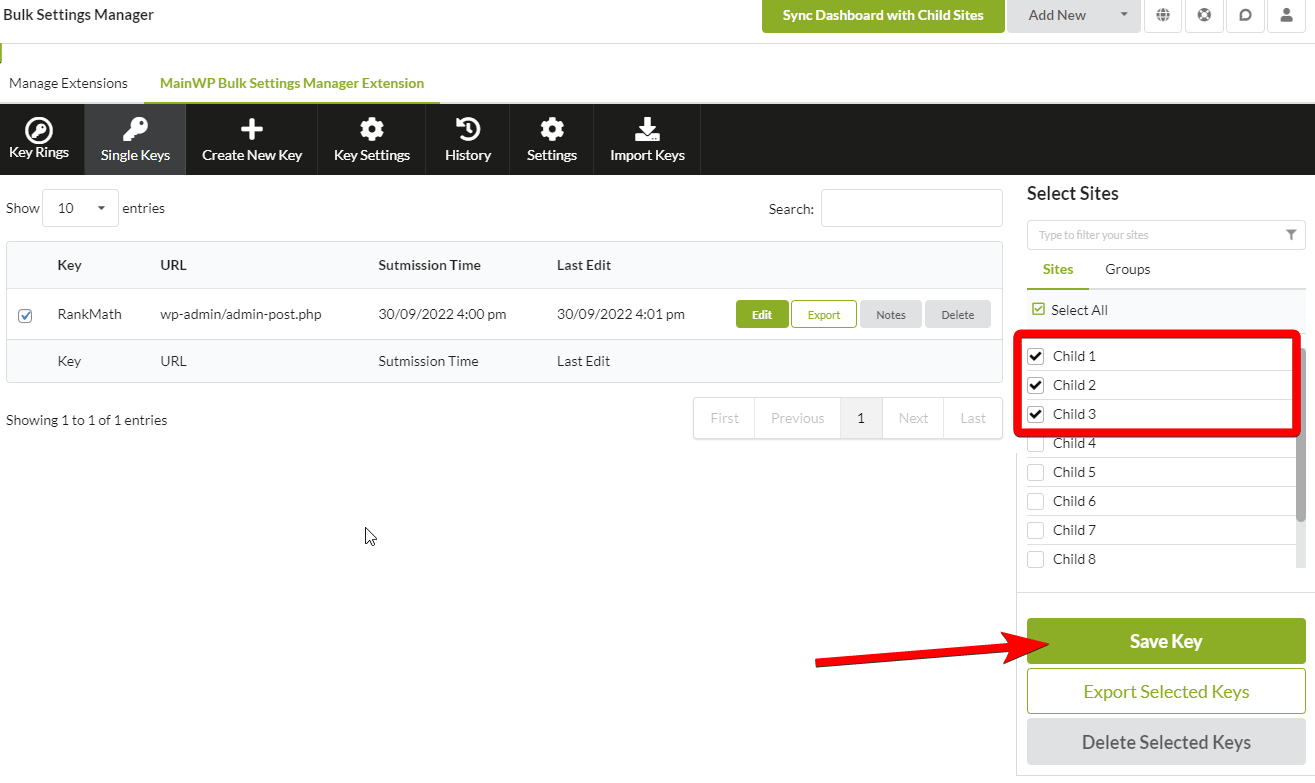
All options from Rank Math > General Settings page are now applied to all selected Child Sites
Related Resources
- Administrative Add-ons - Browse all administrative tools
- Code Snippets Extension - Deploy code snippets to child sites
- White Label Extension - Customize child site branding