
What You’ll Accomplish
- Understand what “abandoned” means in MainWP
- Manually check for abandoned plugins across your sites
- Manually check for abandoned themes across your sites
- Review abandoned items and decide on replacements
Prerequisites
- MainWP Dashboard installed and activated
- At least one child site connected to your Dashboard
- Sites synced recently to have current plugin/theme data
What Does “Abandoned” Mean?
MainWP marks a plugin or theme as “possibly abandoned” when its author has not released an update for the period set in your Dashboard settings. The default threshold is 365 days.MainWP fetches last-updated information from wordpress.org. Plugins or themes that are delisted from wordpress.org cannot be detected as abandoned.
Why Abandoned Items Matter
Automatic Checks
MainWP automatically checks for abandoned plugins and themes once per day during the scheduled sync process.These checks depend on the sync-data settings in MainWP > Settings > Advanced Settings. In the Select data to sync section, keep Abandoned plugins information and Abandoned themes information enabled. If either checkbox is cleared, MainWP does not refresh that abandoned-data set during regular automated syncs or manual site syncs.
Manual Check from Manage Sites
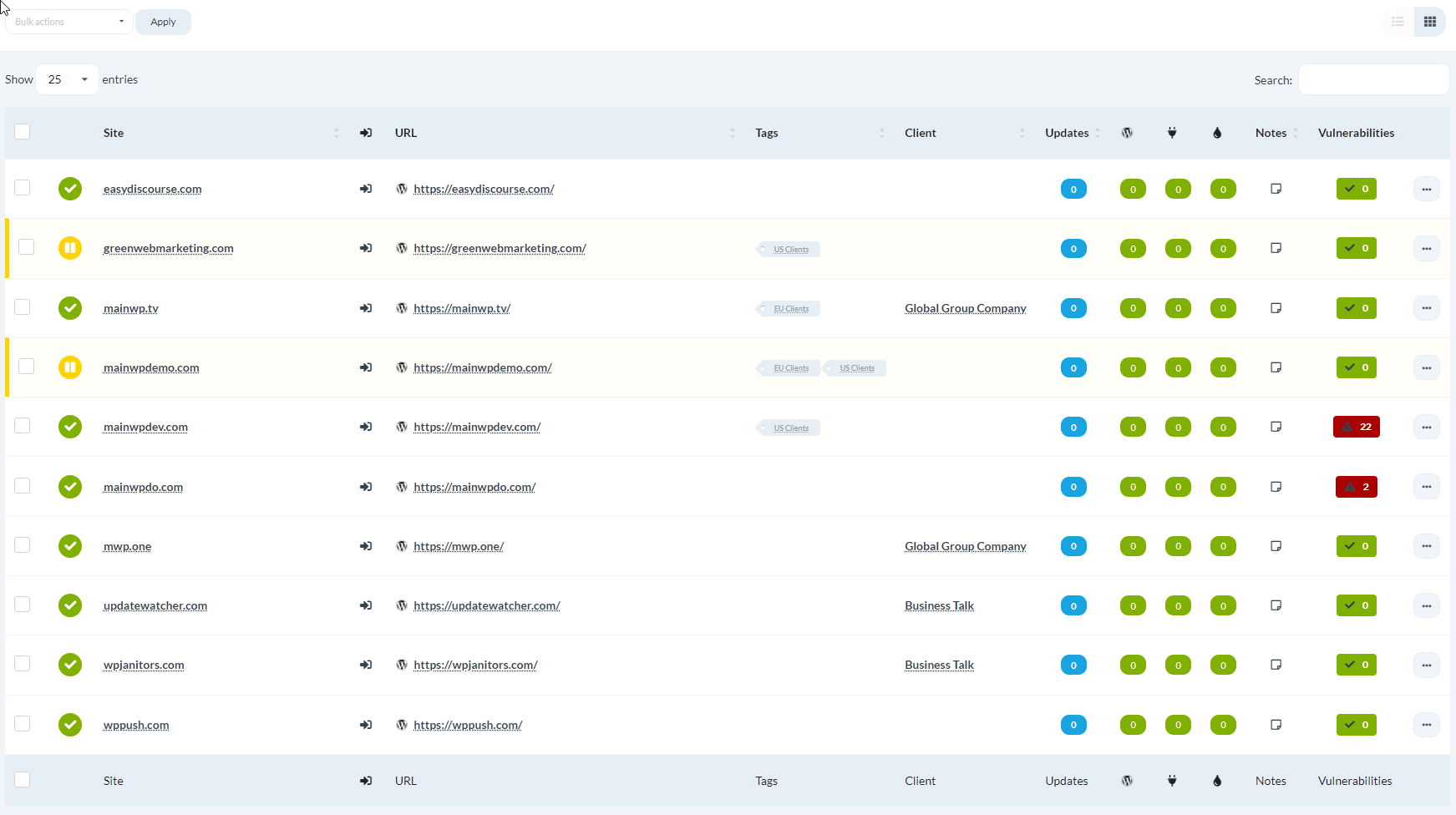
1
Navigate to Manage Sites
Go to MainWP > Sites > Manage Sites.
2
Select sites
Check the boxes next to the sites you want to check.
3
Choose action
In the Bulk Actions menu, select Check Abandoned Plugins or Check Abandoned Themes.
4
Apply
Click Apply.MainWP scans the selected sites for abandoned items.
Manual Check from Updates Page
Check Abandoned Plugins
1
Navigate to Abandoned Plugins
Go to MainWP > Updates > Abandoned Plugins.
2
Run check
Click Check for Abandoned Plugins.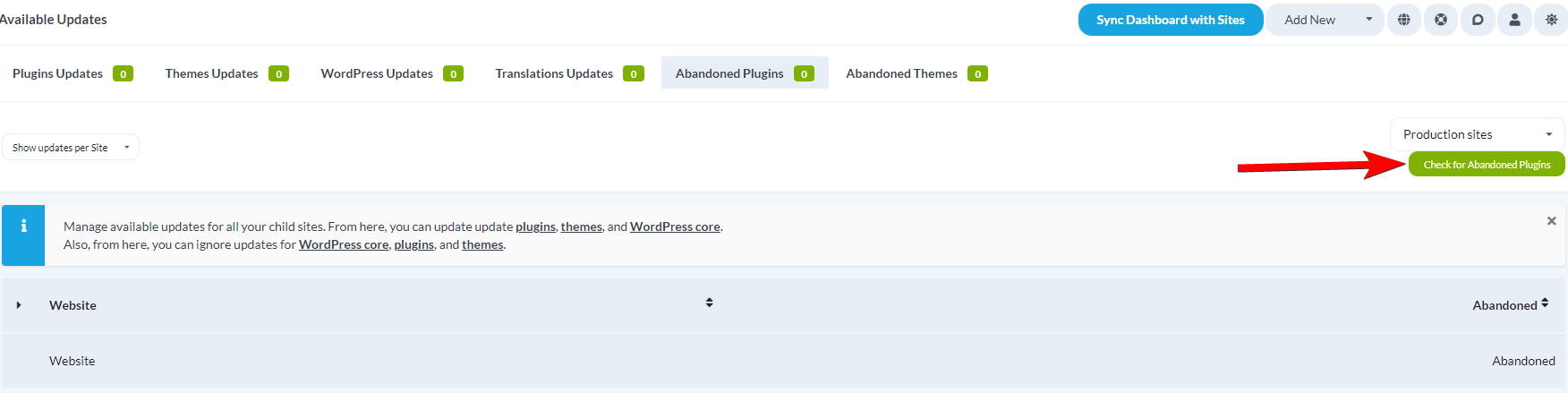
Check Abandoned Themes
1
Navigate to Abandoned Themes
Go to MainWP > Updates > Abandoned Themes.
2
Run check
Click Check for Abandoned Themes.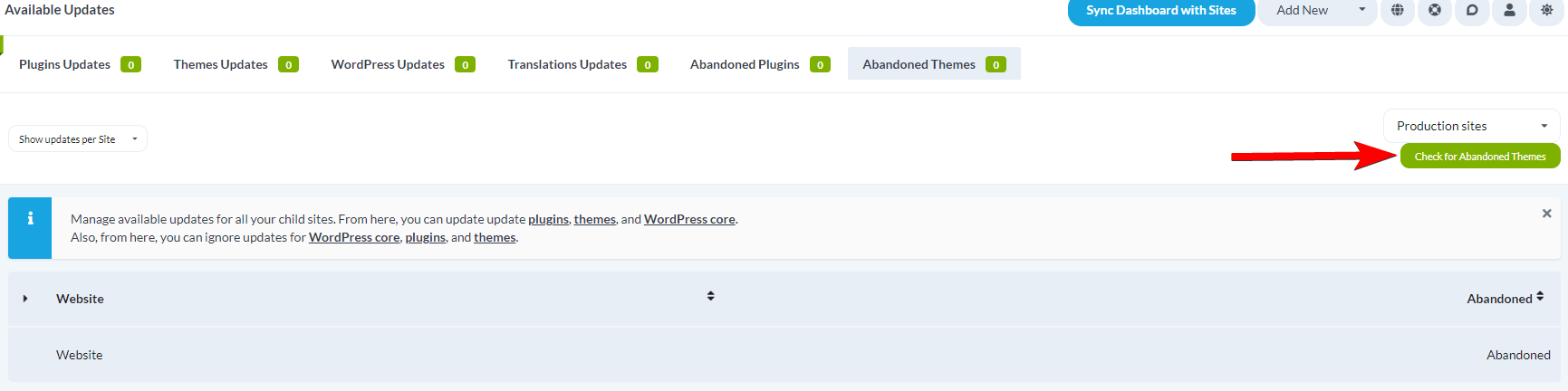
Adjust Abandoned Tolerance
Change the number of days before an item is marked as abandoned:- Go to MainWP > Settings
- Find Updates Settings
- Adjust Abandoned plugins/themes tolerance (default: 365 days)
- Click Save Settings
What to Do with Abandoned Items
When you identify abandoned plugins or themes:- Search for alternatives - Look for actively maintained plugins with similar functionality
- Check last commit date - Some plugins on wordpress.org may have active GitHub development
- Test replacements - Install alternatives on a staging site first
- Plan migration - Replace abandoned items before they cause issues
Self-Check Checklist
- Abandoned plugins check completes successfully
- Abandoned themes check completes successfully
- Results display in the Updates page
- Tolerance setting matches your requirements
Related Resources
- Manage Plugins - Full plugin management documentation
- Manage Themes - Full theme management documentation
- What Does Possibly Abandoned Mean - Detailed explanation