
What You’ll Accomplish
- Install plugins from WordPress.org or ZIP files on multiple sites
- Activate and deactivate plugins across selected sites
- Delete unused plugins from child sites
- Update plugins individually or in bulk
- Configure automatic updates for trusted plugins
Prerequisites
- MainWP Dashboard installed and activated
- At least one child site connected to your Dashboard
- Administrator access to your Dashboard site
Install Plugins
MainWP provides three methods for installing plugins:Install from WordPress.org
Navigate to Install Plugins
Search for plugin
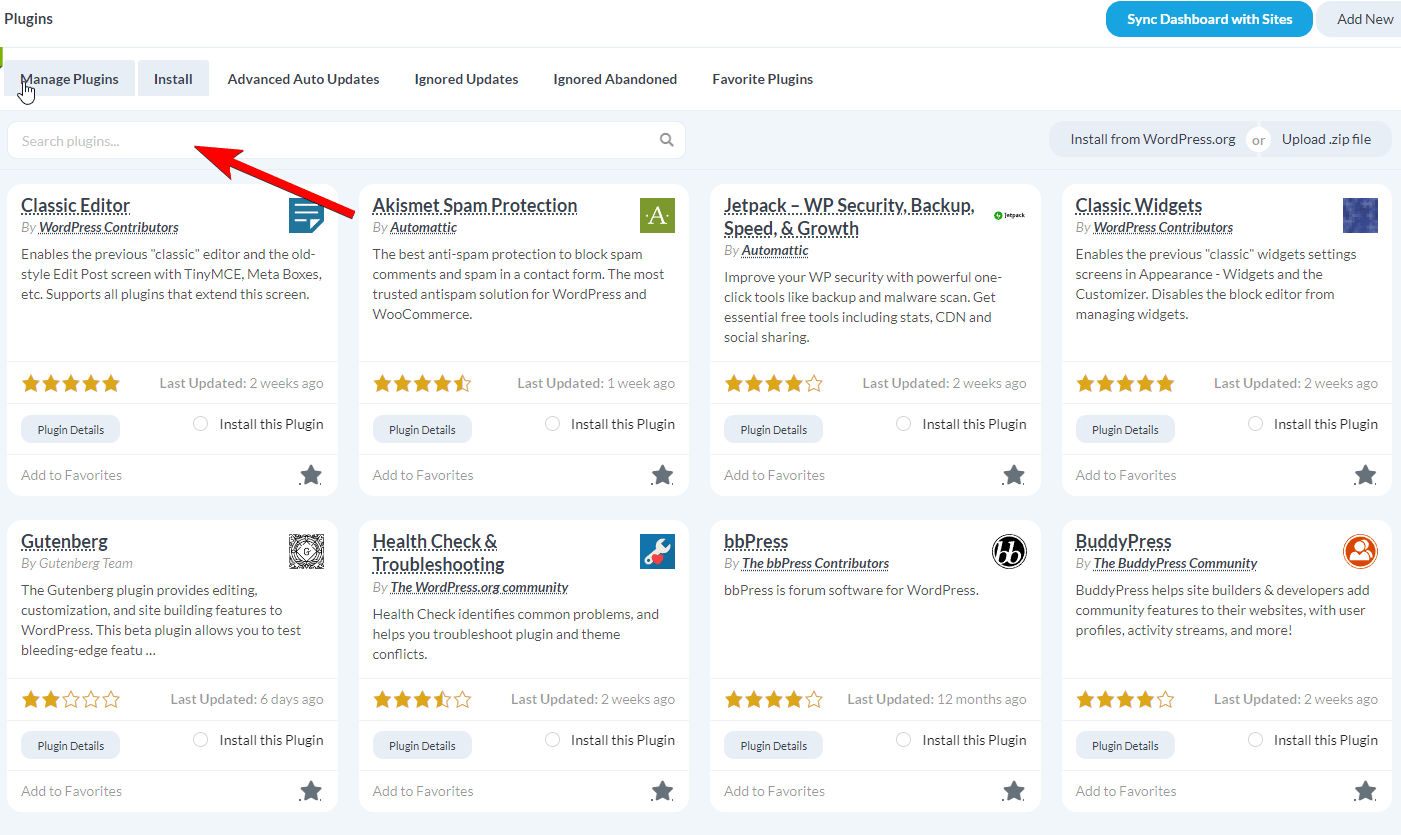
Select plugin
Select sites
Set installation options
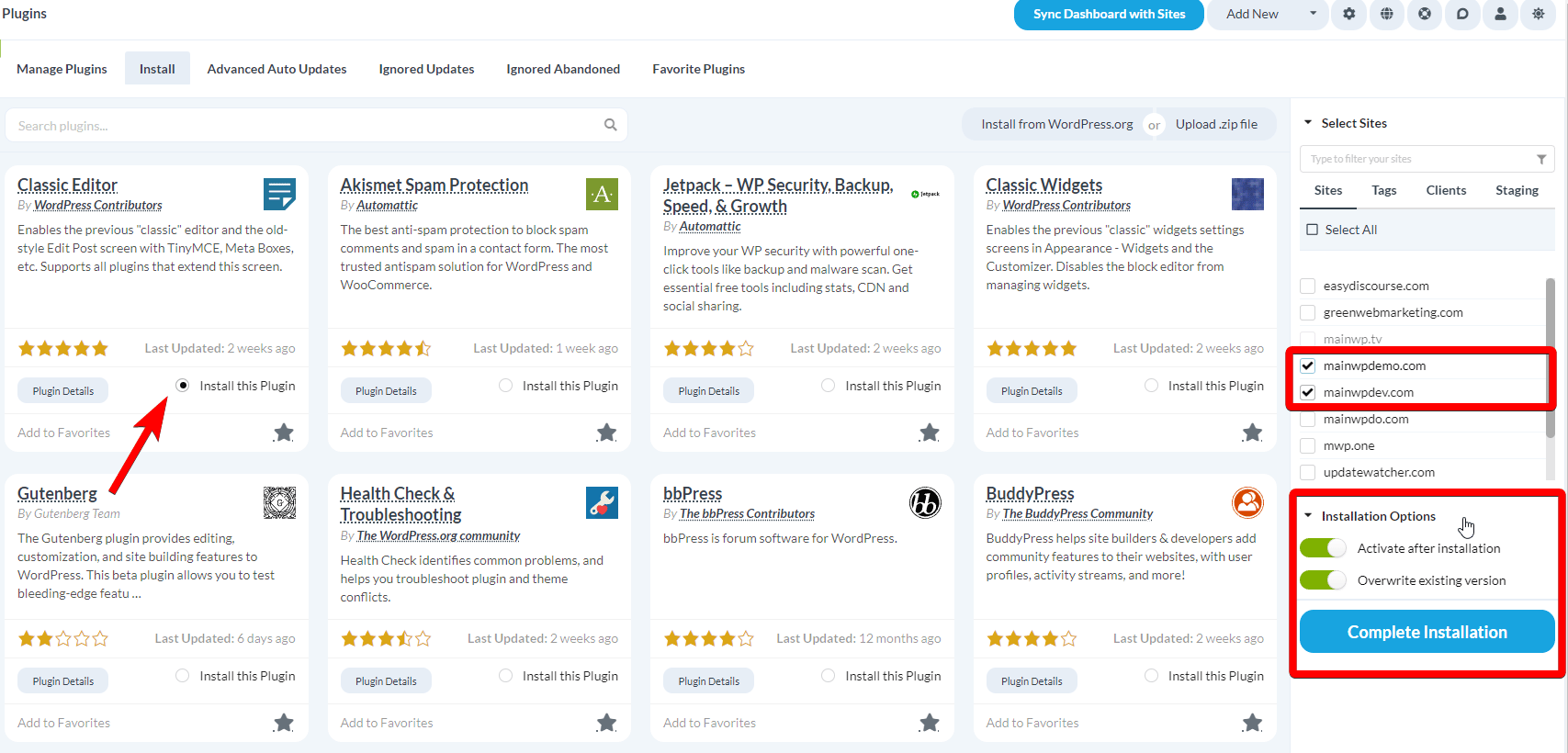
Install
Install by Upload
Navigate to Install Plugins
Open upload tab
Upload file
Select sites
Set installation options
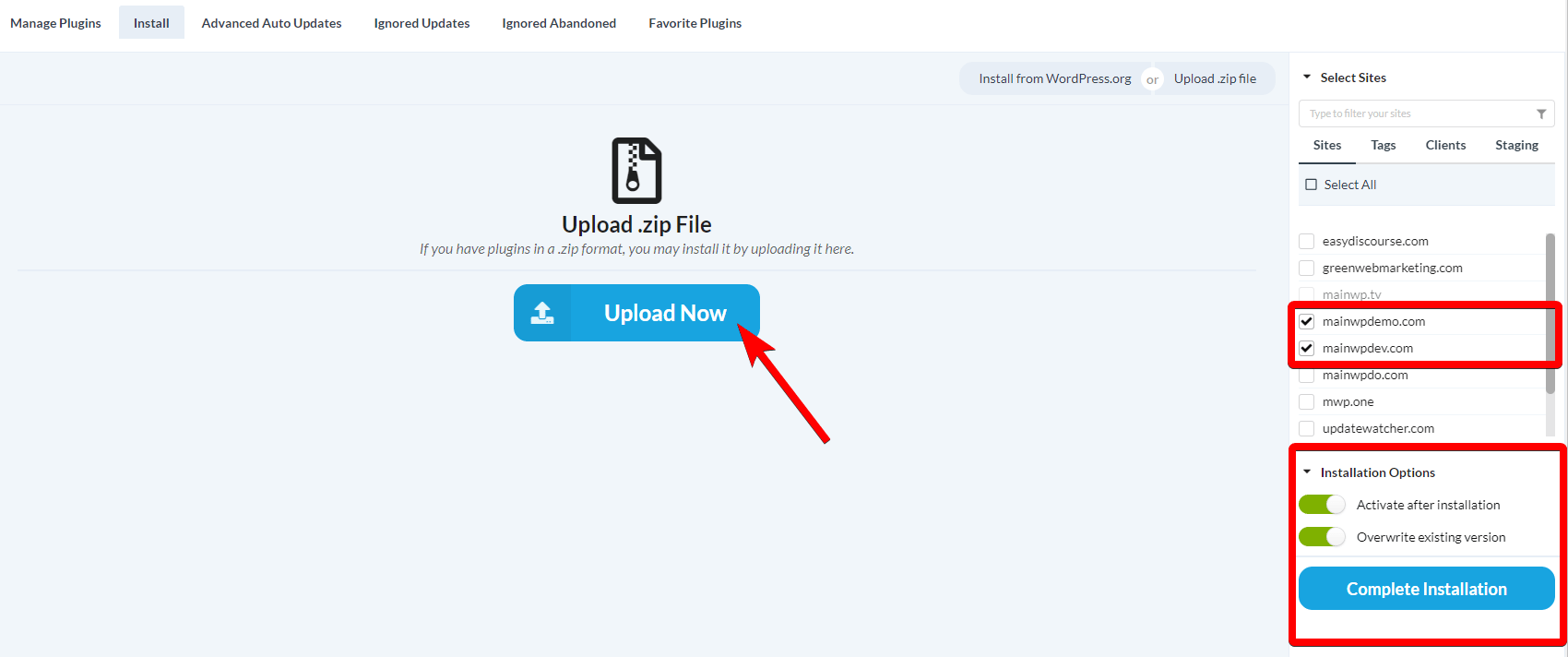
Install
Install from Favorites
Select and install plugins from your saved favorites using the MainWP Favorites Extension. Once you have a list of favorite plugins, this provides the quickest way to set up new sites.Activate Plugins
Navigate to Manage Plugins
Select view
Filter inactive plugins
Select sites
Search
Select plugins to activate
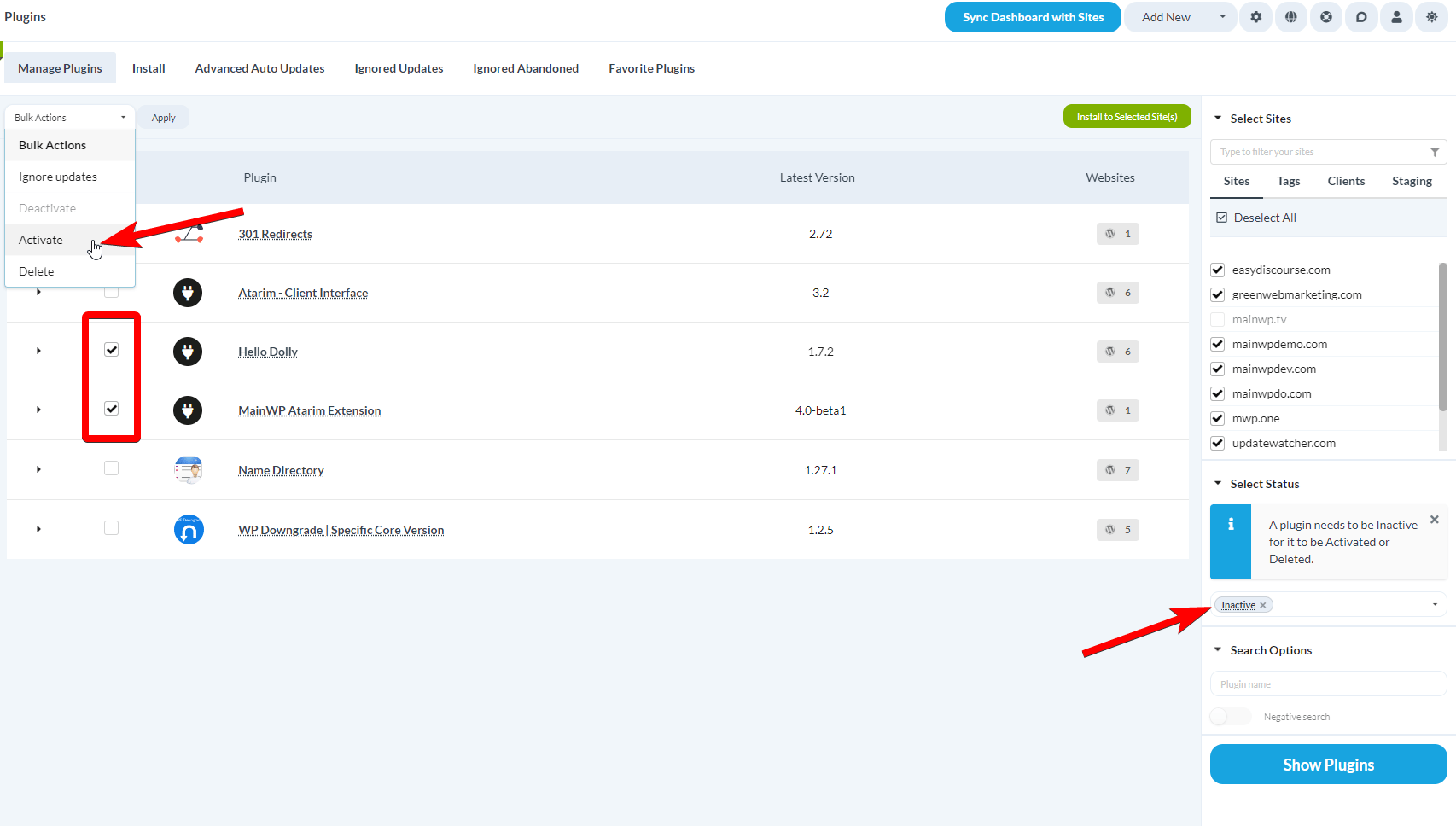
Apply action
Deactivate Plugins
Navigate to Manage Plugins
Select view
Filter active plugins
Select sites
Search
Select plugins to deactivate
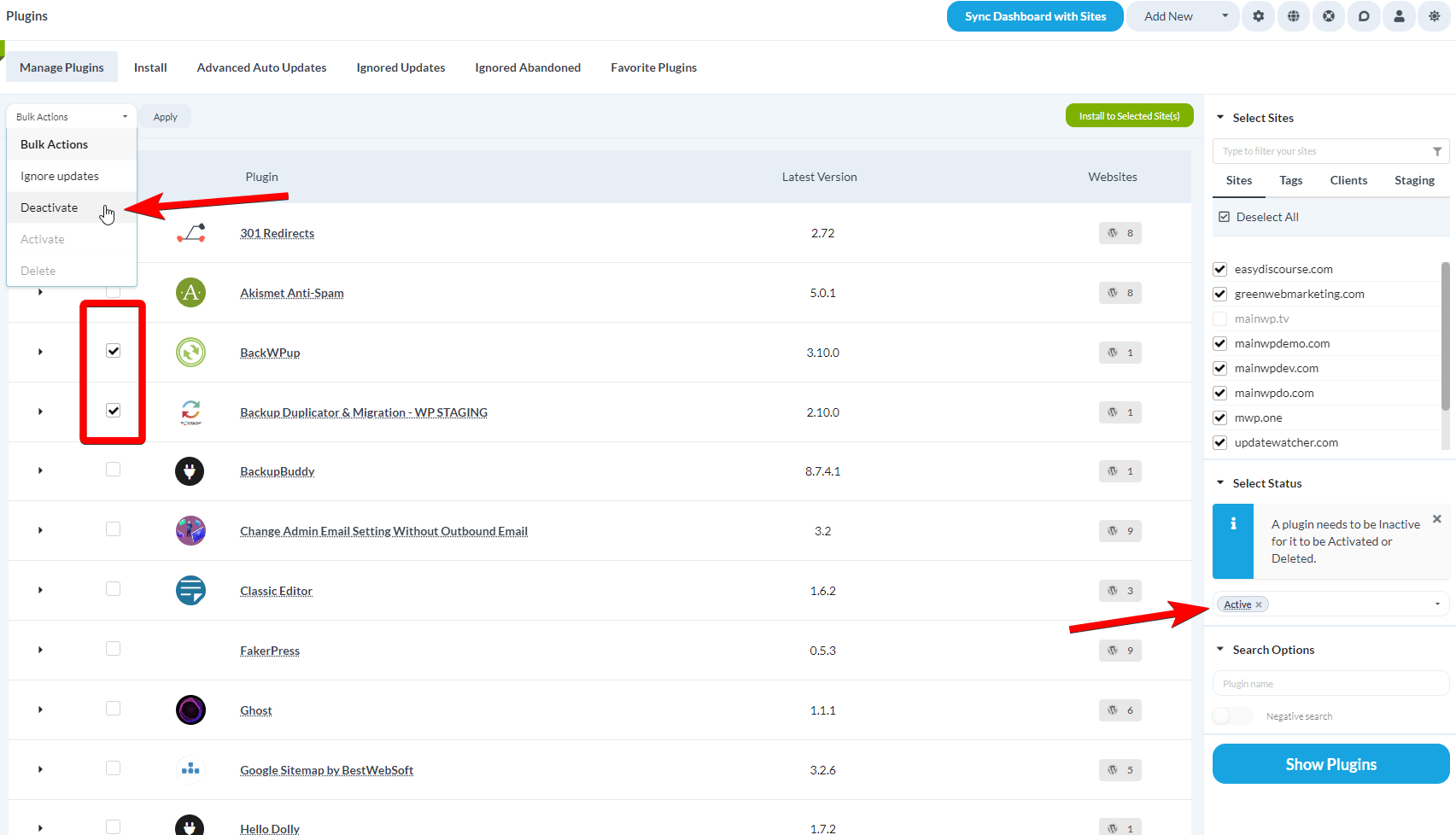
Apply action
Delete Plugins
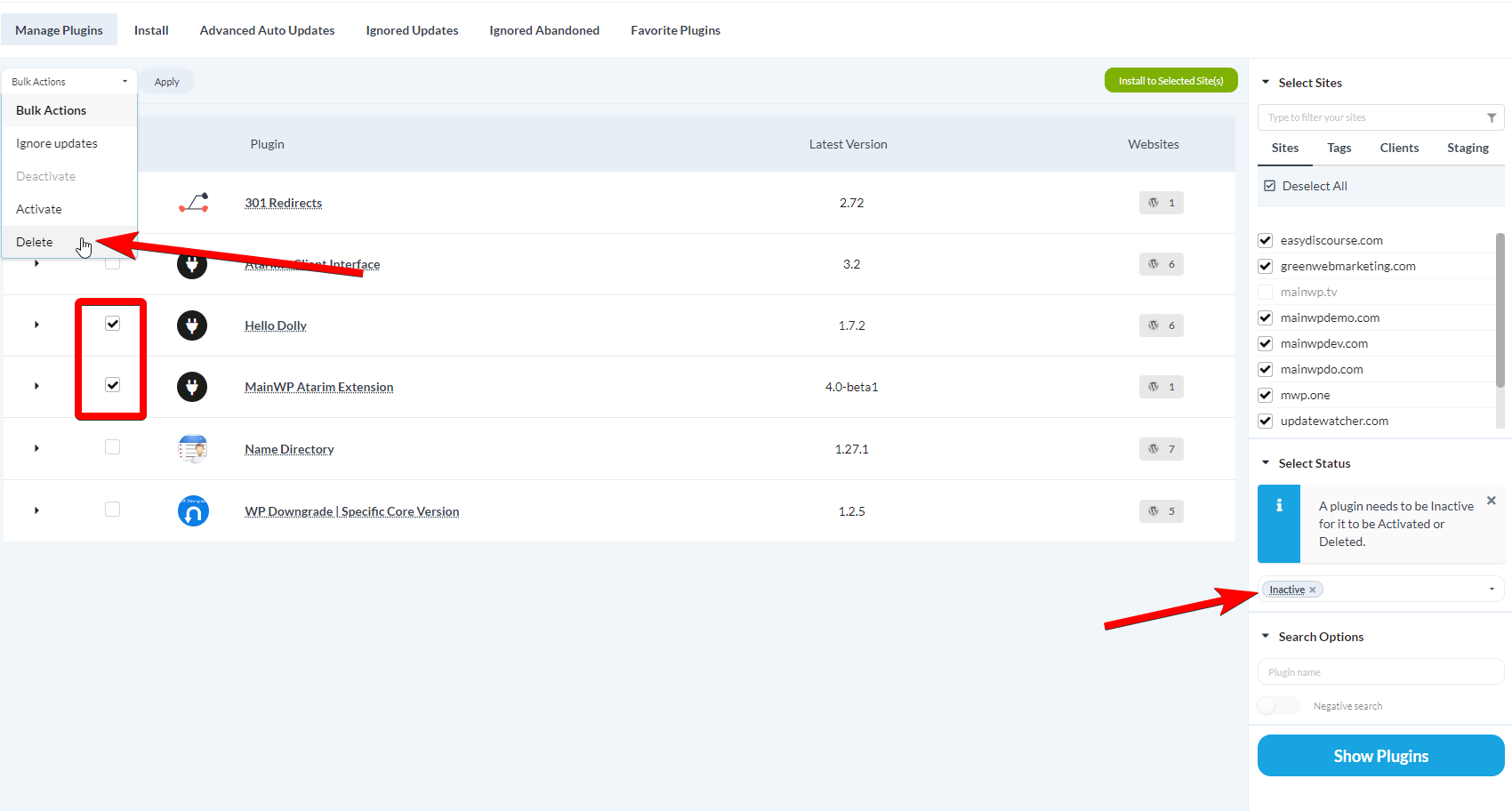
You can delete active and inactive plugins. If a selected plugin is active, MainWP deactivates it during deletion.Navigate to Manage Plugins
Select view
Filter plugins by status
Select sites
Search
Select plugins to delete
Apply action
Update Plugins
Synchronize your child sites before running updates to ensure all available updates are displayed.Update All Plugins on All Sites
Navigate to Plugin Updates
Update all
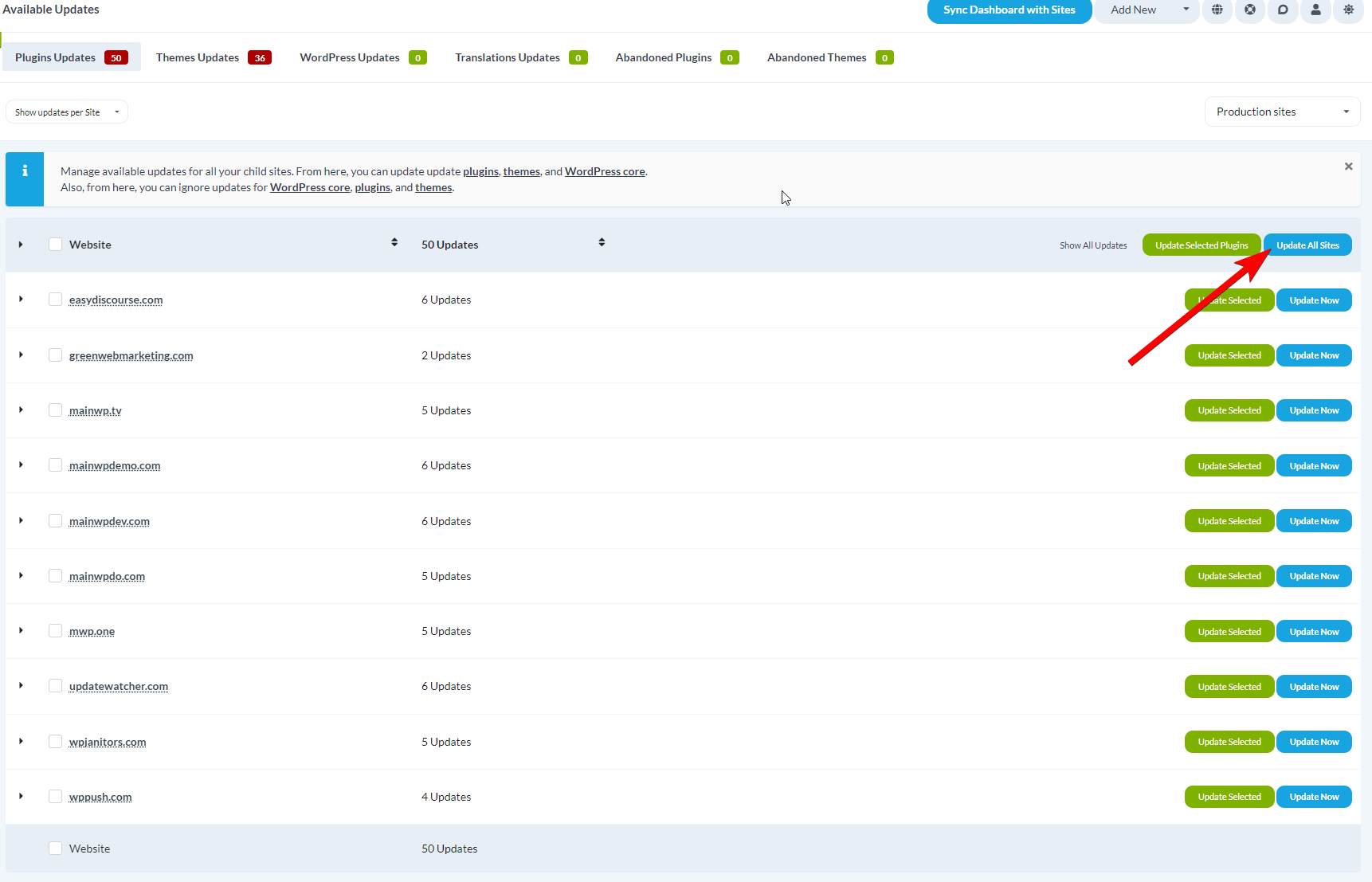
Confirm
Update a Single Plugin on All Sites
Navigate to Plugin Updates
Select view
Locate plugin
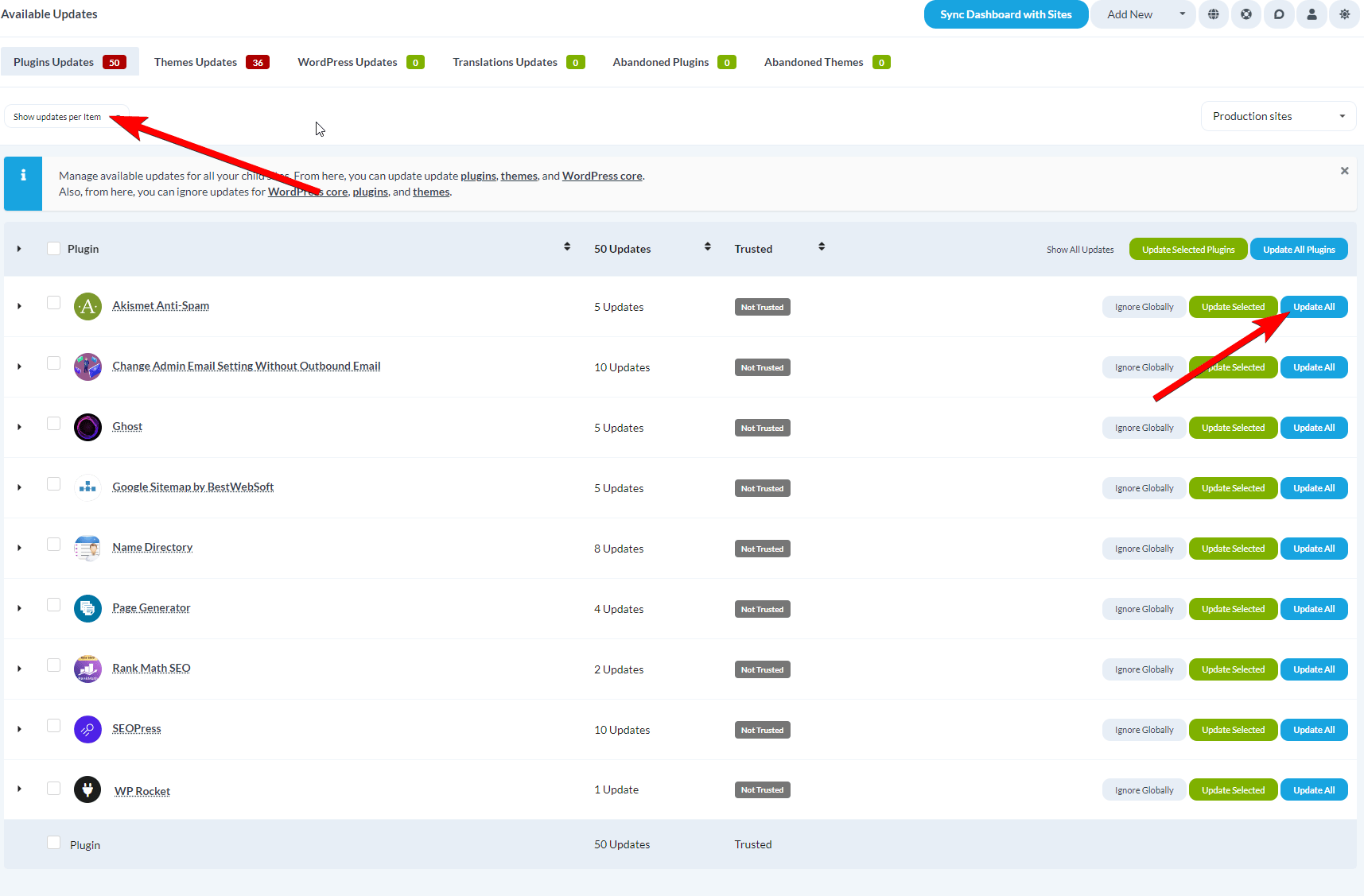
Update
Update All Plugins on a Single Site
Navigate to Plugin Updates
Select view
Locate site
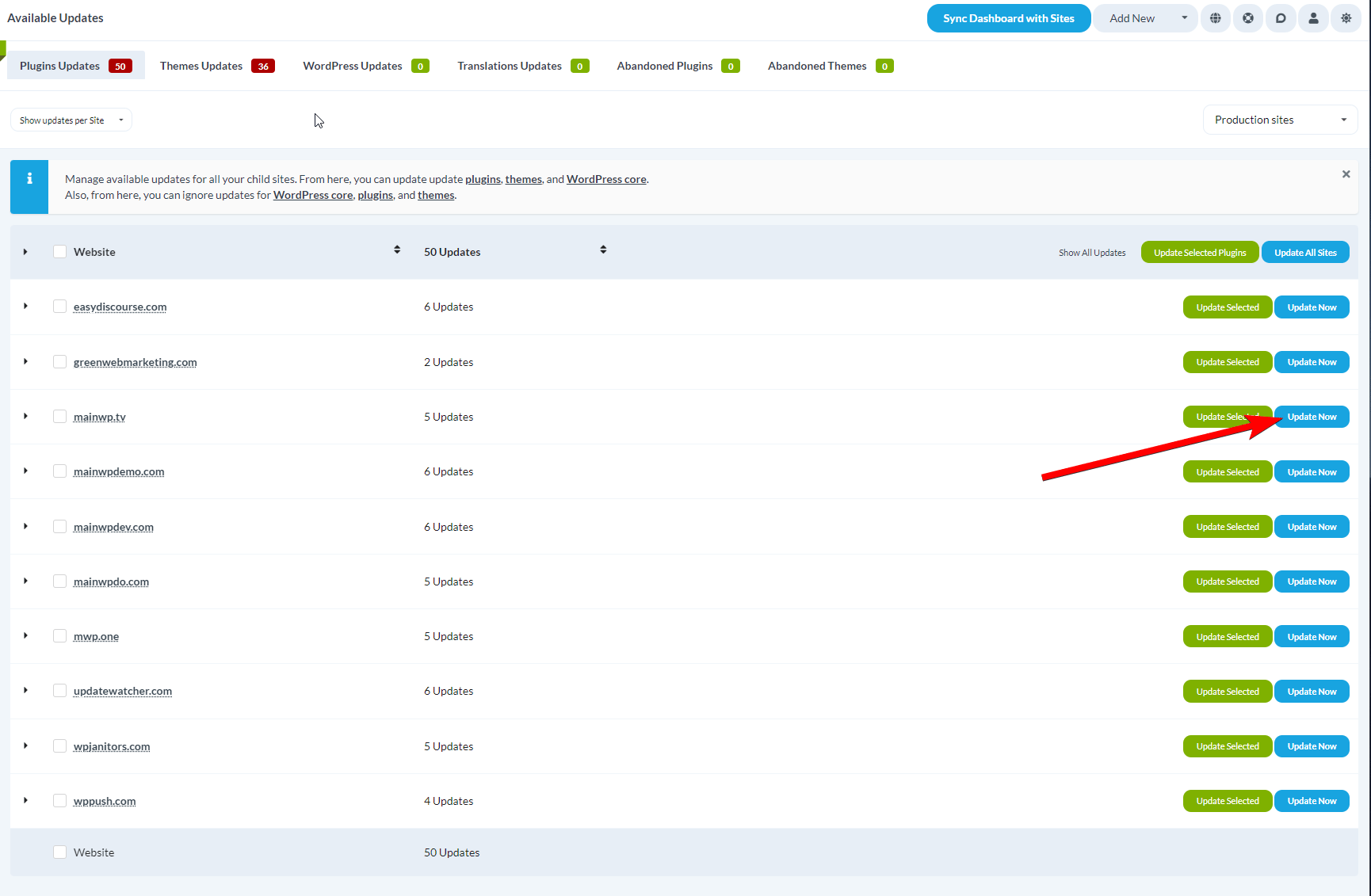
Update
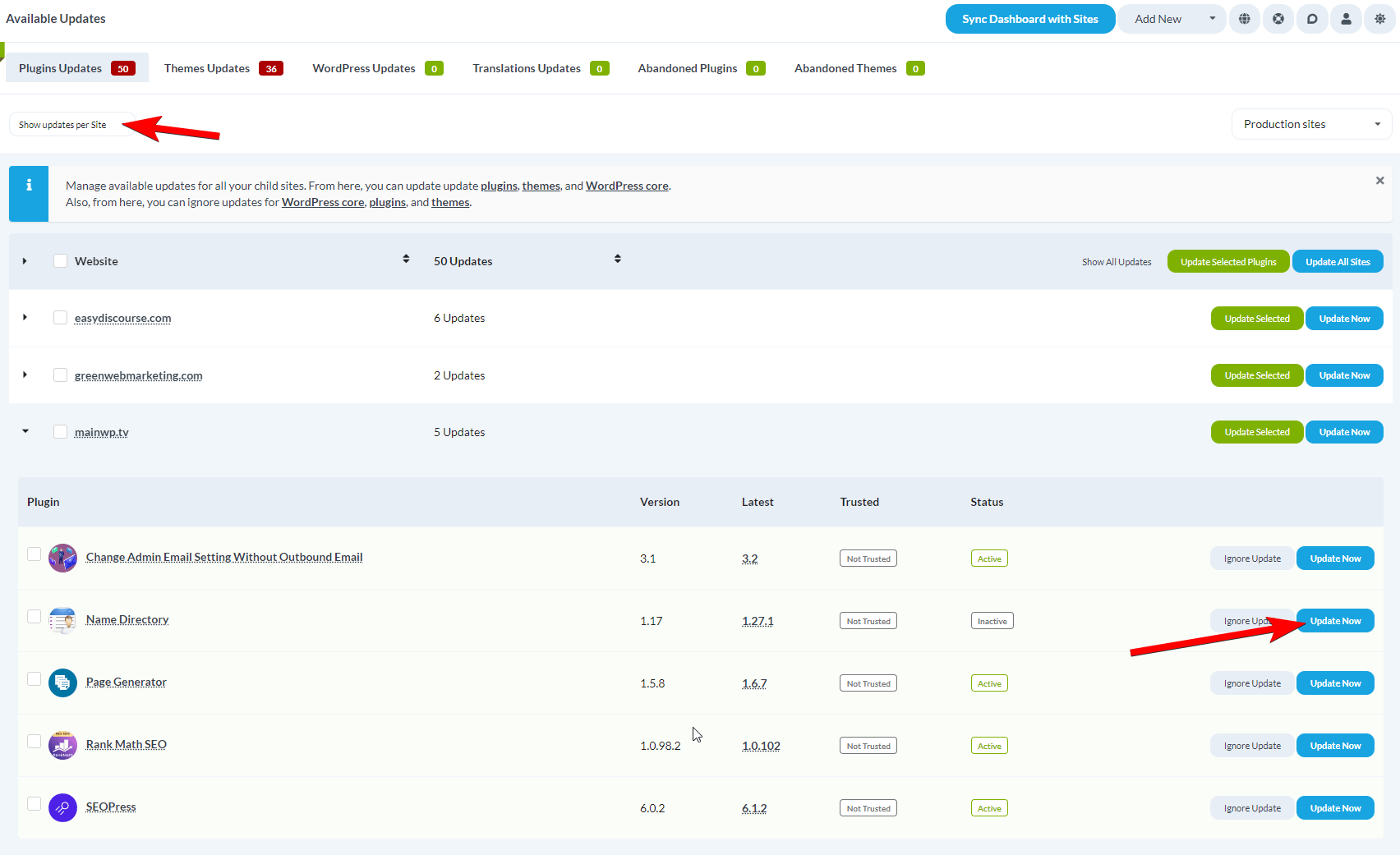
Update a Single Plugin on a Single Site
Navigate to Plugin Updates
Select view
Locate site
Update plugin
View Plugin History
Use the History action to review plugin change activity by site and by day.Open a plugin row with History
Open the history modal
Review activity details
Switch history views
Load older records
Configure Automatic Updates
Automatic updates require two configuration steps: enabling the feature and marking plugins as trusted.Enable Auto Updates
Navigate to Settings
Find Updates Settings
Enable
Save
Mark Plugins as Trusted
Navigate to Advanced Auto Updates
Filter plugins
Search
Select plugins
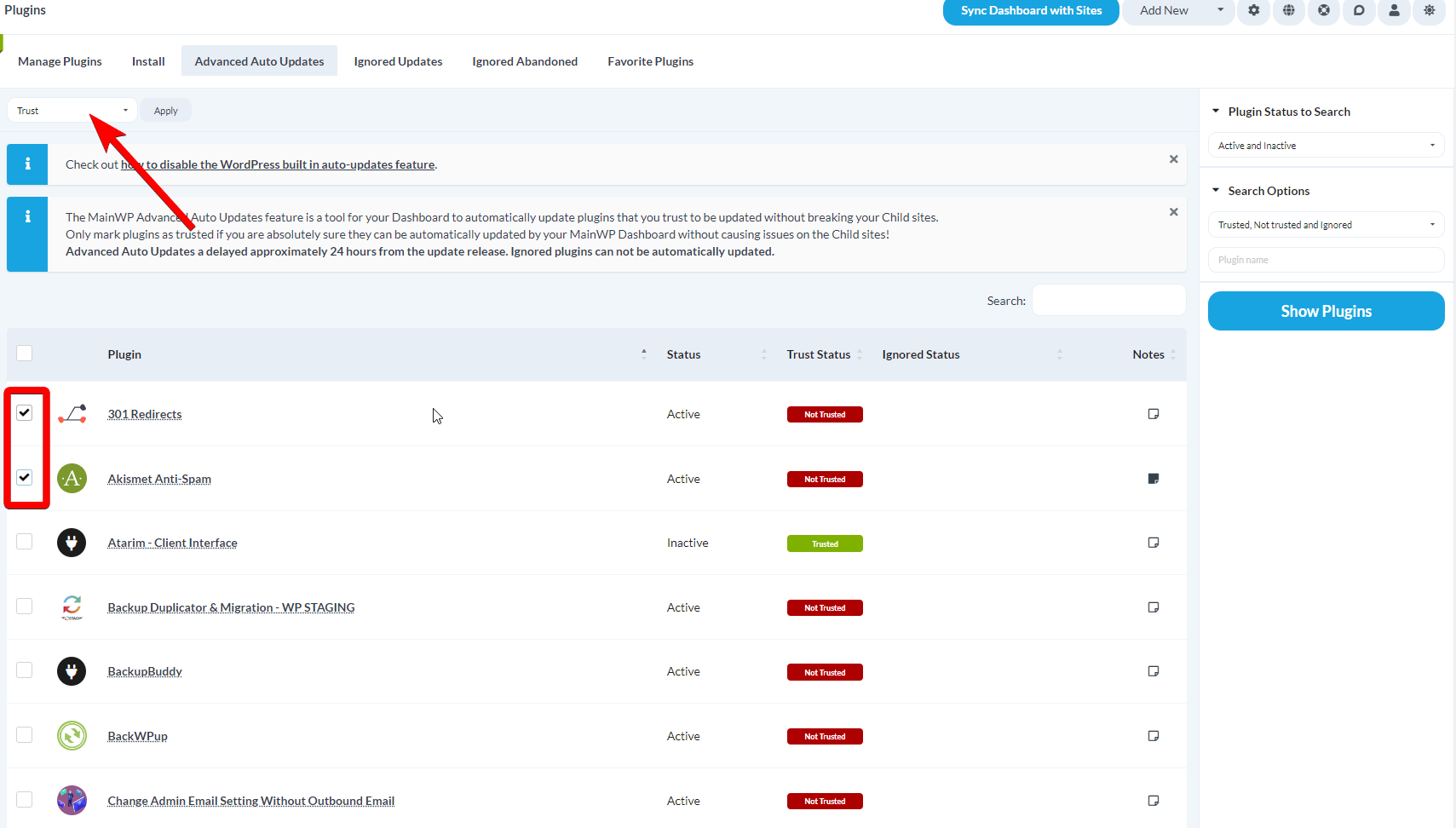
Apply trust
Auto Updates Timing
- Updates may take up to 24 hours after MainWP detects a new version
- Auto updates require WP Cron to be triggered regularly
- Consider using Uptime Robot to ping your Dashboard site for reliable cron execution
Self-Check Checklist
- Plugins install successfully on selected sites
- Plugin activation and deactivation work across sites
- Plugin updates complete without errors
- Auto updates are configured for trusted plugins
- Deleted plugins are removed from child sites
Related Resources
- Check for Abandoned Plugins - Identify outdated plugins
- Favorites Extension - Quick plugin installation from saved lists
- Manage Updates - Update management overview