
What You’ll Learn
- Check if the REST API is accessible
- Fix permalink settings that block REST API
- Identify plugins that disable REST API
- Resolve server-level REST API blocks
Prerequisites
- Admin access to your WordPress site
- Ability to access plugin settings
- Access to wp-config.php (for server-level fixes)
Check if REST API is Blocked
Visit this URL in your browser (replace with your actual domain):Fix Permalink Settings
The REST API requires non-Plain permalinks due to a WordPress limitation.1
Open permalink settings
Go to WP Admin > Settings > Permalinks.
2
Select a non-Plain structure
Choose any option except Plain (the first option).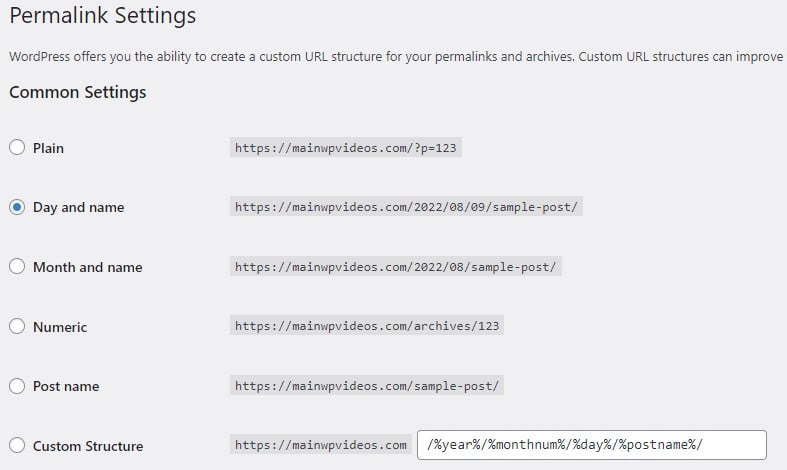
3
Save changes
Click Save Changes.
4
Test REST API
Visit
https://your-site.com/wp-json/ again to verify it’s now working.Check for Plugins Disabling REST API
Security and performance plugins often include options to disable the REST API. While this rarely improves security or performance, some users enable it.Plugins That Can Disable REST API
These plugins don’t disable REST API by default. If you have any installed, check their settings for REST API options.
Find the Blocking Plugin
1
Deactivate plugins
Deactivate security and performance plugins one at a time.
2
Test after each
After each deactivation, test
https://your-site.com/wp-json/ to see if REST API responds.3
Identify the culprit
When REST API starts working, you’ve found the plugin causing the block.
4
Adjust plugin settings
In that plugin’s settings, look for REST API options and enable API access. You may be able to whitelist specific endpoints rather than disabling the block entirely.
Server-Level Restrictions
Web server configurations (Apache or NGINX) can block REST API requests by restricting paths starting with/wp-json/.
Check .htaccess (Apache)
Look in your site’s.htaccess file for rules that might block /wp-json/ requests.
Check NGINX Configuration
If using NGINX, check your server configuration for location blocks that restrict/wp-json/ access.
Contact Your Host
If you’re unable to identify the blocking rule, contact your hosting provider and ask them to verify that REST API requests are not being blocked at the server level.Required Endpoints for MainWP
If you’re using the MainWP browser extension or REST API integrations, these endpoints must be accessible:REST API Security Considerations
The REST API is active by default on WordPress sites and is the standard communication protocol for modern WordPress functionality. Keeping it enabled:- Presents no increased security risk compared to traditional methods
- Is required for Gutenberg editor, many plugins, and mobile apps
- Can be secured through proper authentication rather than disabling
Self-Check Checklist
- Tested REST API by visiting /wp-json/ directly
- Verified permalink structure is not set to Plain
- Checked installed plugins for REST API disable options
- Confirmed server-level restrictions are not blocking REST API
- REST API returns JSON data when accessed
Related Resources
- MainWP Browser Extensions - Uses REST API
- MainWP REST API Overview - API documentation
- Troubleshoot Connection Problems - General connection issues